Remote Desktop via Windows App Connection
This article describes to how connect to your organisation-connected computer through Azure Virtual Desktop infrastructure.
Follow this guide if you are connecting to a work desktop from a personal device and your company has Azure Virtual Desktop infrastructure.
Azure Virtual Desktop provides access to remote desktop configurations hosted in the Microsoft Cloud that are connected to on-premise infrastructure, enabling you to seamlessly and securely connect to your device at work using a personal/unmanaged device.
This article describes how to use the Windows App to access your physical work desktop. If you are trying to access your desktop via VPN, see Remote Desktop. If you are trying to access your Azure Virtual Desktop Environment (you don't have a physical computer), see Azure Virtual Desktop Connection Guide.
Prerequisites
If you intend to connect to your work desktop computer, please ensure you make note of its name and leave it powered on before you leave the office. To find it:
-
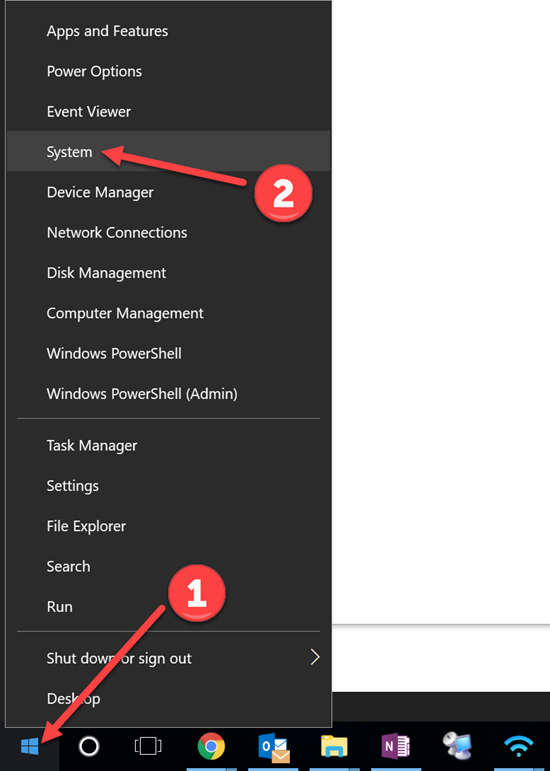
Right-click the Start button > Go to System:
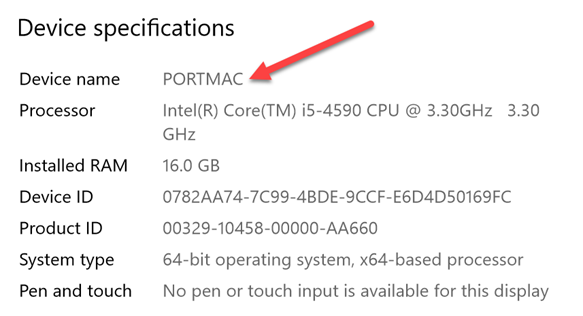
A new window will open:
-
Note down the Device name. You’ll need this when you connect later.
Installing Windows App
 The Windows App is available on a computer, tablet or mobile phone. Choose the one that best suits you.
Computers
Open the Microsoft Store (on Windows) or App Store (on Mac) and download Windows App.
If you can't find the app, click on the button applicable to your computer below.

|
|
Mobiles and Tablets
Open the App Store (on iPhone and iPad) or Google Play (on Android, e.g. Google, Samsung) and download Windows App.
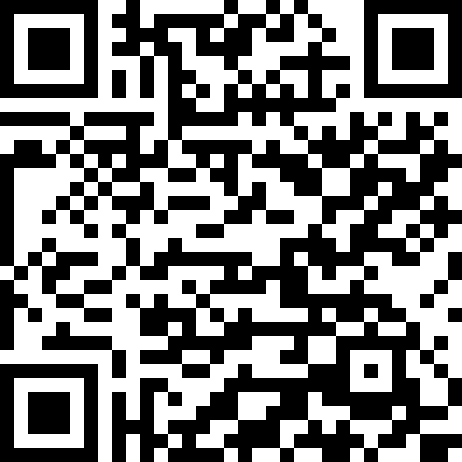
If you can't find the app, click on the button or scan the QR code applicable to your phone below.
|
|

|
|
|
Accessing your virtual desktop
These instructions may be different to what you see, depending on your device. The process is largely the same. If you have any issues, please contact the Private Universe Helpdesk.
-
Open Windows App.
-
Click Sign in and log in using your work account credentials.
-
If prompted with Welcome to Windows App, click Skip.
-
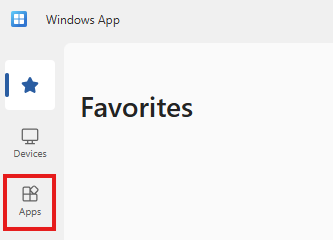
Once logged in, locate the "Apps" icon on the left-hand side. Select this icon to view your assigned apps.
-
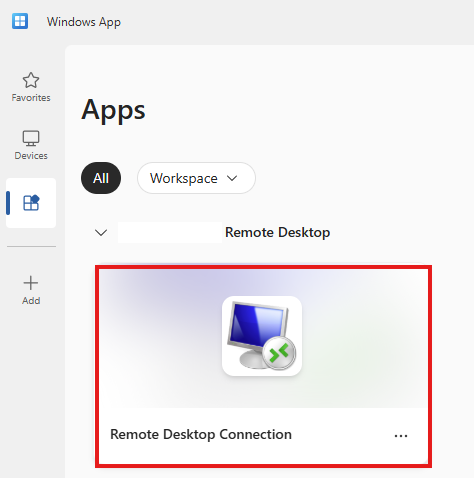
Select the Remote Desktop Connections application.
-
Wait for your the app to launch. This make take a while as your Azure Virtual Desktop server may need to be provisioned, please be patient.
-
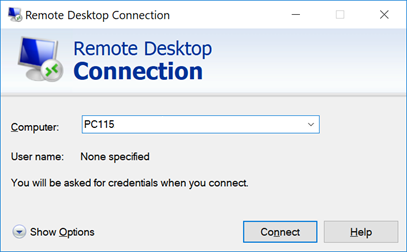
Enter the name of your work computer you noted earlier in the Computer field.
-
Click Connect.
-
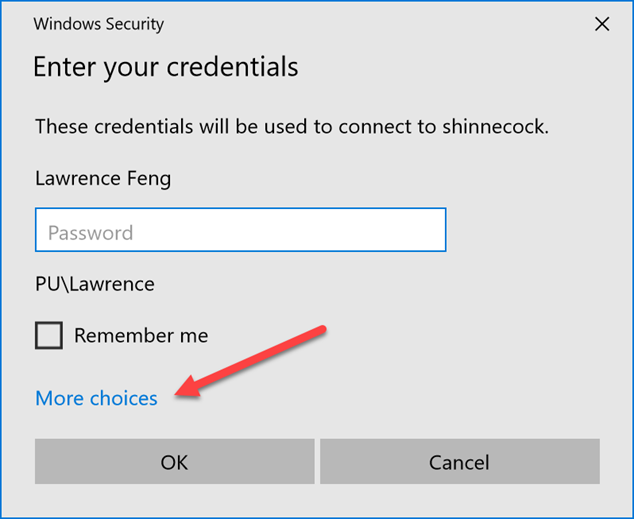
Click More choices.
-
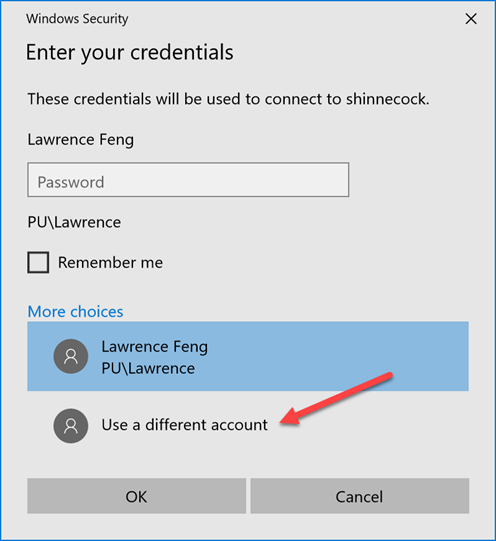
Select Use a different account.
-
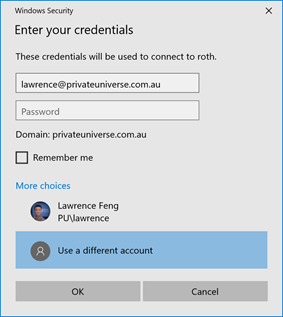
Enter your username and password in the following format, then click OK:
- Username: your email address
- Password: your work computer password
-
If prompted with a "The identity of the remote computer cannot be verified" message, click Yes.
You should now be connected to your work computer.